

Mac startup issue troubleshooting is essential for IT admins and power users. When your Mac fails to complete the startup process, it pauses at specific screens — each one indicating a different issue that needs immediate attention.
Common Mac Startup Issues and How to Troubleshoot Them
- Mac starts up with a question mark “?”
- Circle with a Line Through It
- Globe with warning symbol
- Apple Logo or Progress Bar on Startup
- Blank (Black) Screen
- Options with a Gear icon
- Exclamation point in a circle
- Lock icon
How to Diagnose and Resolve macOS Startup Screen Issues
Mac Starts up with a Question Mark
A folder with a flashing question mark means that your computer’s startup disk is no longer available or doesn’t contain a working Mac operating system.

Mac startup with question mark screen troubleshooting
Step-by-Step Resolution:
- Force Shut Down
- Enter macOS Recovery Mode
- Use macOS Recovery Utilities: Disk Utility, Reinstall macOS, Additional Tools (Time Machine, Terminal)
If the problem continues:
- Reinstall macOS via the recovery interface.
- Check Startup Disk Settings to ensure the correct disk is selected in System Settings > Startup Disk
- Reset NVRAM (Non-Volatile Random-Access Memory)
Circle with a Line Through It (Prohibitory Symbol)
A prohibitory symbol, which looks like a circle with a line or slash through it, means that your startup disk contains a Mac operating system, but it’s not a version or build of macOS that your Mac can use.

Mac startup with Circle with a Line Through It (Prohibitory Symbol)
Step-by-Step Resolution For Mac devices with Apple silicon (M1, M2, M3, M4):
- Force shut down – Hold the power button for 10 seconds.
- Enter Recovery Mode – Hold the power button again until “ Loading startup options ” appears.
- Click Options > Continue to access macOS Recovery.
- Authenticate if prompted, then use tools like:
- Disk Utility to repair the disk
- R einstall macOS if needed
Globe with Warning Symbol
This symbol appears when your Mac attempts to start macOS Recovery over the internet but fails, often due to network issues.

Mac startup with Globe with Warning Symbol
Step-by-Step Resolution:
- Force Shut Down > Hold the power button for ~10 seconds until the Mac turns off.
- Start Recovery Press and hold the power button until “ Loading startup options ” appears.
- Access Recovery, click Options > Continue .
- Authenticate if prompted, choose our startup disk and user account, then enter the login password.
- Use Recovery Utilities:
- Disk Utility – Repair/erase startup disk
- Reinstall macOS – Fresh OS install if needed
- Other Tools – Time Machine, Terminal, etc.
This process allows troubleshooting or reinstalling macOS when local recovery isn’t accessible.
Mac Starts up to an Apple Logo or Progress Bar
Your Mac shows an Apple logo when it finds your built-in or external startup disk. As the startup continues, you should see a progress bar, with or without the Apple logo. This screen might alternate with a blank screen several times.

Mac startup with Apple Logo
If you’re updating macOS:
- The Apple logo and progress bar may stay longer than usual—this is normal.
- Apple recommends starting updates in the evening to allow time for completion.
If your Mac is stuck or keeps restarting:
-
Force Shut Down – Hold the power button for 10 seconds.
-
Restart – Turn the Mac back on.
-
If issue persists:
- Shut down again and disconnect all non-essential accessories.
- Restart your Mac.
- Still stuck?
- Start macOS Recovery > Use Disk Utility to repair the startup disk.
- If needed, reinstall macOS from Recovery.
- If the issue continues – The Mac might require service.
Blank (Empty) Screen
A blank screen (black, gray, or blue) should appear once or more as your Mac starts up. If your Mac seems to be turning on but is stuck on a blank screen, follow these steps.

Mac startup with Blank Screen
Step-by-Step Resolution:
-
Force Shut Down – Hold the power button for 10 seconds, then turn it back on.
-
Start macOS Recovery:
- If successful : Use Disk Utility to repair the startup disk, then restart.
- If the issue persists : Re-enter Recovery and reinstall macOS.
- If Recovery doesn’t start:
- For Mac devices with Apple silicon or T2 chip, we may need to revive or restore firmware.
Options with a Gear Icon - Mac with Apple Silicon
The startup options window shows icons for each available startup disk, a gear icon labeled Options, and buttons for Shut Down and Restart.
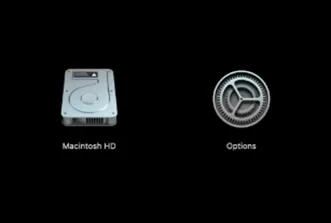
Mac startup with Options with a Gear Icon
Step-by-Step Resolution:
When holding the power button during startup, the Startup Options window appears. From here, we can:
- Select a startup disk (e.g., Macintosh HD ) and click Continue to boot normally.
- Click the Options ( gear icon ) and then Continue to access macOS Recovery (for reinstalling macOS, Disk Utility, etc.).
- Use Shut Down or Restart as needed.
Advanced options:
- Hold Shift while clicking “ Continue “ to boot in Safe Mode.
- Press and hold Command ( ⌘)-D to run Apple Diagnostics.
Exclamation Point in a Circle
This symbol means the firmware on the Mac is corrupted often caused by a power failure during macOS installation. In such cases, the firmware must be revived or restored using DFU (Device Firmware Update) mode.

Mac startup with Exclamation Point in a Circle
Steps to Revive or Restore Mac Firmware:
- Two Mac devices required
- Affected Mac
- Working Mac with macOS and internet access
- Connect both Mac devices using a USB-C cable
- Plug in the power to both devices
- Use Finder on the working Mac for the DFU process
Enter DFU Mode on the Affected Mac:
- Shut down the Mac (hold power for 10 sec)
- Immediately press and hold:
- Left Control
- Left Option
- Right Shift
- Power button
- Keep holding for:
- Apple silicon : 10 sec, then release all except power button for 10 more sec
- T2 chip : 3 sec only
-
A blank screen on the affected Mac confirms DFU mode
-
Finder will display “Mac DFU Mode”
When to Use This Process:
Use DFU restore only if:
- We see a circle with an exclamation point
- macOS firmware is corrupted or not responding
- Internet Recovery and macOS Recovery don’t work
Lock Icon
The lock icon appears at startup when a firmware password is set and we are trying to start up from a different disk (e.g., external drive, macOS Recovery).

Mac startup with Lock Icon
How to Enable Firmware Password:
-
Start up in macOS Recovery (Turn on your Mac and immediately press and hold Command + R)
-
From the menu bar, choose: Utilities > Startup Security Utility (or Firmware Password Utility)
-
Enter your administrator password
-
Click Turn On Firmware Password
-
Set and remember your firmware password
-
Quit the utility, then go to Apple Menu > Restart
How to Turn-Off Firmware Password:
-
Shut down the Mac completely. If unresponsive, press and hold the power/Touch ID button for 10 seconds until it turns off.
-
Press and hold the power/Touch ID button again until you see “Loading startup options” or the Options icon.
-
Release the button, then click “Options” > Continue.
-
If prompted, select the startup disk (e.g., Macintosh HD) and click Next.
-
Select a user account, then enter the user password to proceed into macOS Recovery.
-
In the menu bar at the top, click Utilities > Startup Security Utility (or Firmware Password Utility if available).
-
Click “Turn Off Firmware Password”.
-
Enter the existing firmware password to confirm and disable it.
-
Once done, restart the Mac from the Apple menu.
If you forgot the firmware password:
- Mac requires service.
- Visit an Apple Store or AASP.
Conclusion
By understanding common startup screens, using macOS utilities, and following structured troubleshooting methods, most issues can be resolved efficiently. If the problem persists or the Mac shows signs of hardware failure or locked firmware, contact Apple Support or visit an authorized service provider for advanced assistance.